> For the complete documentation index, see [llms.txt](https://docs.candelacharts.com/llms.txt). Markdown versions of documentation pages are available by appending `.md` to page URLs; this page is available as [Markdown](https://docs.candelacharts.com/statistics/ohlc-volatility-range-map-tm/visualization.md).
# Visualization
OHLC Volatility Range Map Visualization
The OHLC Volatility Range Map offers two distinct visualization modes, each designed to present data in a unique and insightful way:
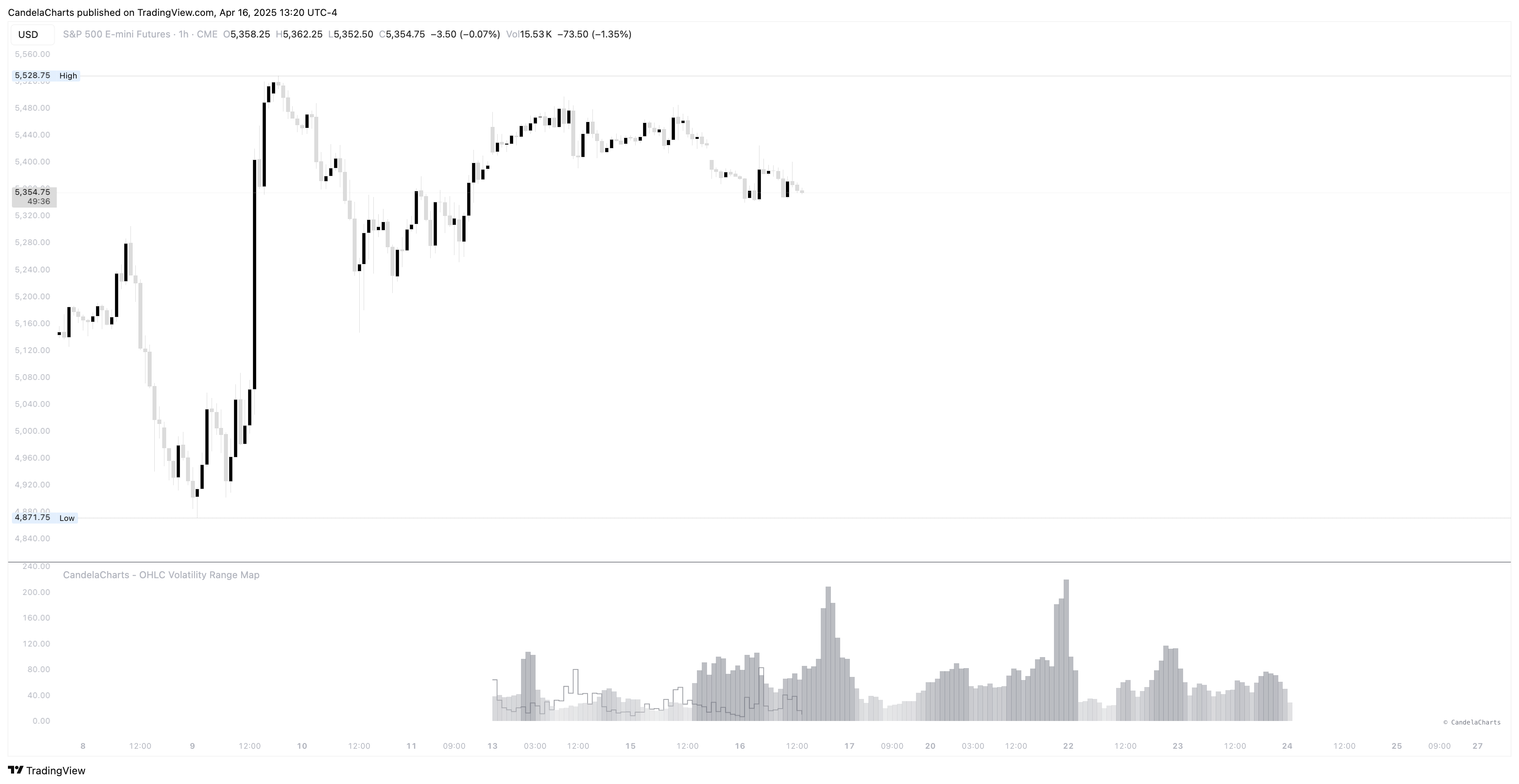
### **Barchart**
This mode displays data using vertical bars, offering a clear and intuitive representation of the volatility range across various timeframes. It is ideal for users who prefer a straightforward, numerical approach, enabling easy comparison between individual data points.
Additionally, the Barchart mode includes an option to highlight the **current volatility**, providing real-time insights into the present market conditions and allowing users to quickly assess ongoing volatility levels.
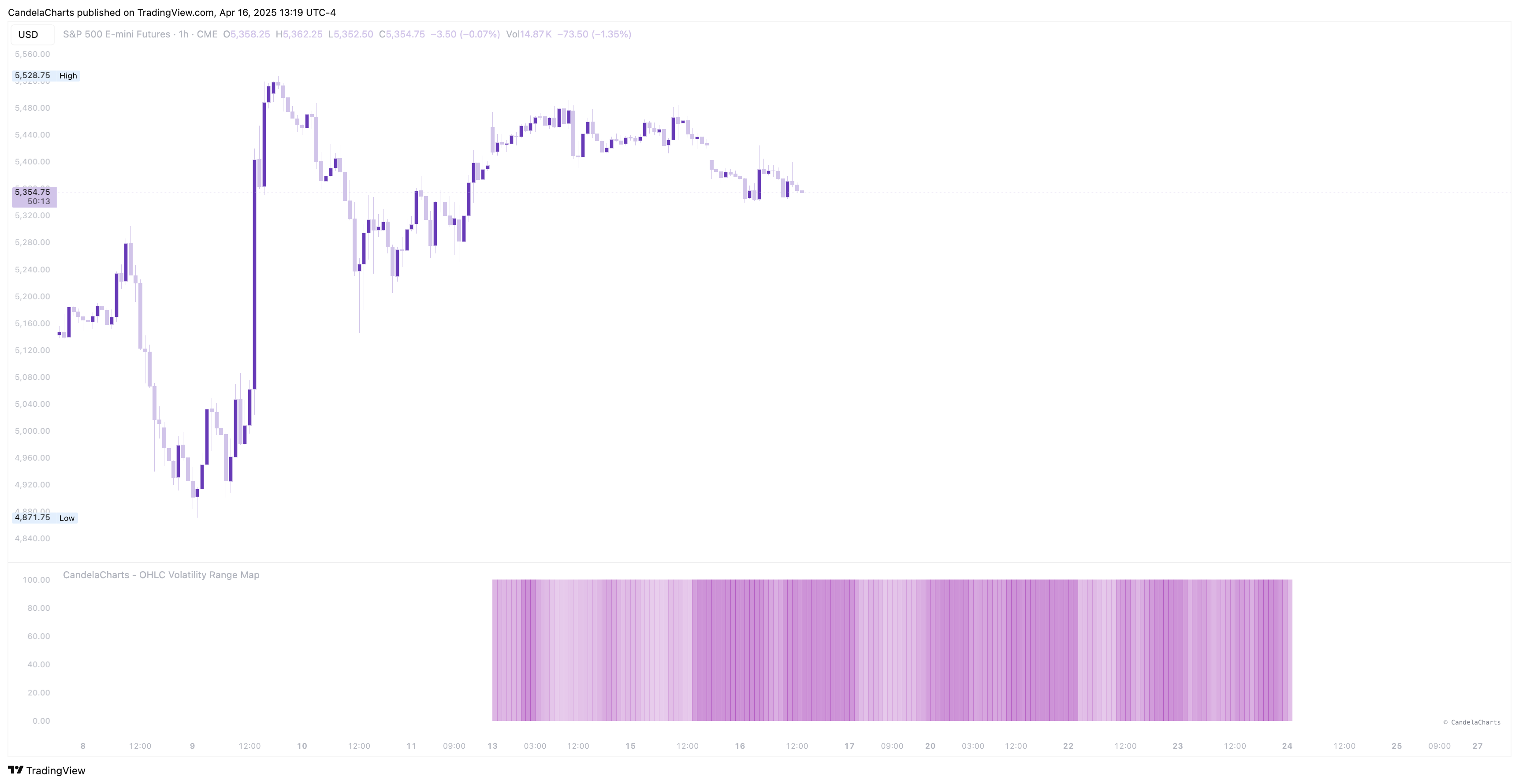
### **Heatmap**
The heatmap visualization mode uses color gradients to represent the intensity of volatility across different price ranges. This mode is particularly useful for quickly identifying trends and patterns, as varying color intensities highlight areas of high and low volatility.
It’s an excellent option for those who prefer a more visual and intuitive approach, making it easier to spot significant fluctuations at a glance.
Together, these two visualization modes provide users with flexible and dynamic ways to analyze OHLC volatility data, catering to different analytical preferences and offering both numerical precision and visual clarity.
---
# Agent Instructions
This documentation is published with GitBook. GitBook is the documentation platform designed so that both humans and AI agents can read, navigate, and reason over technical content effectively. Learn more at gitbook.com.
## Querying This Documentation
If you need additional information that is not directly available in this page, you can query the documentation dynamically by asking a question.
Perform an HTTP GET request on the current page URL with the `ask` query parameter, and the optional `goal` query parameter:
```
GET https://docs.candelacharts.com/statistics/ohlc-volatility-range-map-tm/visualization.md?ask=&goal=
```
`ask` is the immediate question: it should be specific, self-contained, and written in natural language.
`goal` is optional and describes the broader end goal you are ultimately trying to accomplish on behalf of the user. GitBook uses it to tailor the answer towards what is most useful for that goal.
The response will contain a direct answer to the question and relevant excerpts and sources from the documentation.
Use this mechanism when the answer is not explicitly present in the current page, you need clarification or additional context, or you want to retrieve related documentation sections.